

When you’re just starting out your modding journey for the sims 4 it’s important to understand the difference in creating something new for the game and creating an override.
When you’re creating something new you’ll always need to make sure that you’re giving your new tuning file an unique tuning id and instance. The instance is the hex of the tuning id this means they are connected, change one then the other changes automatically. If your tuning file comes with a SimData then it’s very important that you give the SimData the same instance as the tuning file.
What is an Override?
If you’re creating an override this means you’re changing a part of the original tuning and keeping the original tuning id and instance. So, you’re not creating something new, you’re creating an override.
Example
You want to make it more expensive for your sims to have a science baby and you want to keep the original interaction. So, you’ll find the original tuning file and then you change the payment price and you don’t change anything in the data section of the tuning. You keep the original tuning id and instance.
Hash Generator
To create a new tuning file you’ll need to make sure you have an unique tuning id and instance. There are different ways you can create a new tuning id, but the best way is to use the hash generator. With the hash generator you’re guaranteed to get an unique tuning id that hasn’t been used by EA or another modder.
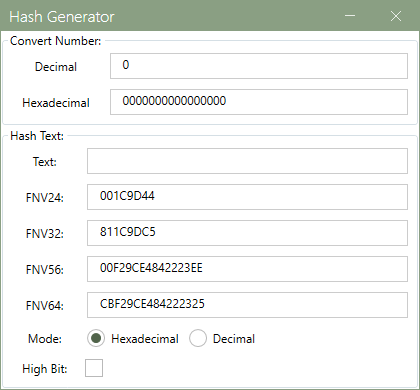
For every new tuning file you’ll only use the hash text section. Then you’ll type the info of your tuning file behind the word text. You’ll always start with your creator name to make sure your tuning id and instance will be unique.
Once you start typing you’ll notice that the numbers and letters behind the FNV are changing. One of these FNV will be your unique instance. Which one depends on the type of tuning file, but most tuning files can use the FNV64 which is a 64 bit tuning and FNV32 is always used for strings and anything shown in create a sim like personality traits and preferences.
There are different ways you can name your tuning files, but if you’re creating a mod with hundreds of tuning files then things can become overwhelming quite quickly. So, it’s important to create a tuning file naming structure.
Example
This is the structure I use to create my unique tuning file names. For this example I’m naming my tuning file: xosdr:RTW_si_activities_cooking
As you can see I start with my creator name xosdr then I place : behind my creator name because if I would write this name in the data of the tuning file behind name then the sims 4 studio will automatically give my tuning file an unique 64 bit tuning id and instance.
Then behind my creator name I write down the name of my mod, in the example it says RTW which stands for road to wealth.
Then I write down the type of tuning, in the example it says si which stands for super interaction, a few more examples I use are: buff, loot, randomloot, buff_hidden, trait, etc.
Behind the type of tuning I write down the category my tuning file falls into and with category I mean the part I’m working on for my mod. In the example it says activities because this tuning file falls under the activities part of my mod.
Lastly I write down what the tuning file is about. In the example it says cooking because this tuning file is the super interaction of the cooking activity.
You might also notice that I use _ between the words in the tuning file I do this because it makes it easier to read.
Video Content
If you prefer video content over written content then make sure to check out this video.
Show You Support
If you’d like to support my content, you can do so through YouTube membership, Patreon membership, or Buy me a Coffee. While support is never expected, it truly helps me keep creating and sharing my content for free.